Most long recordings from a camera that stays put are waiting: an empty canvas while the painter mixes a colour, a workbench between steps, a feeder between visits. Kutmo watches the picture, keeps the stretches where something moves and marks the rest as cuts. It is what Kutmo was built for, and it works on footage with no useful sound at all.
What you need
- A video file: .mp4, .mov, .webm or .mkv. H.264 MP4 works most reliably.
- Footage from a camera that stays still: a tripod, a mount, a screen recording. Handheld footage moves everywhere, so there is nothing still to cut.
- A desktop browser. Chrome or Edge are fastest.
- Premiere Pro 24+, DaVinci Resolve 18+, Final Cut Pro 10.6+, or an editor that reads EDLs. No editor? Kutmo can save a trimmed MP4 instead.
Your first 2 runs need no account, and a free account adds 5 more. The video stays on your computer the whole time; nothing is uploaded.
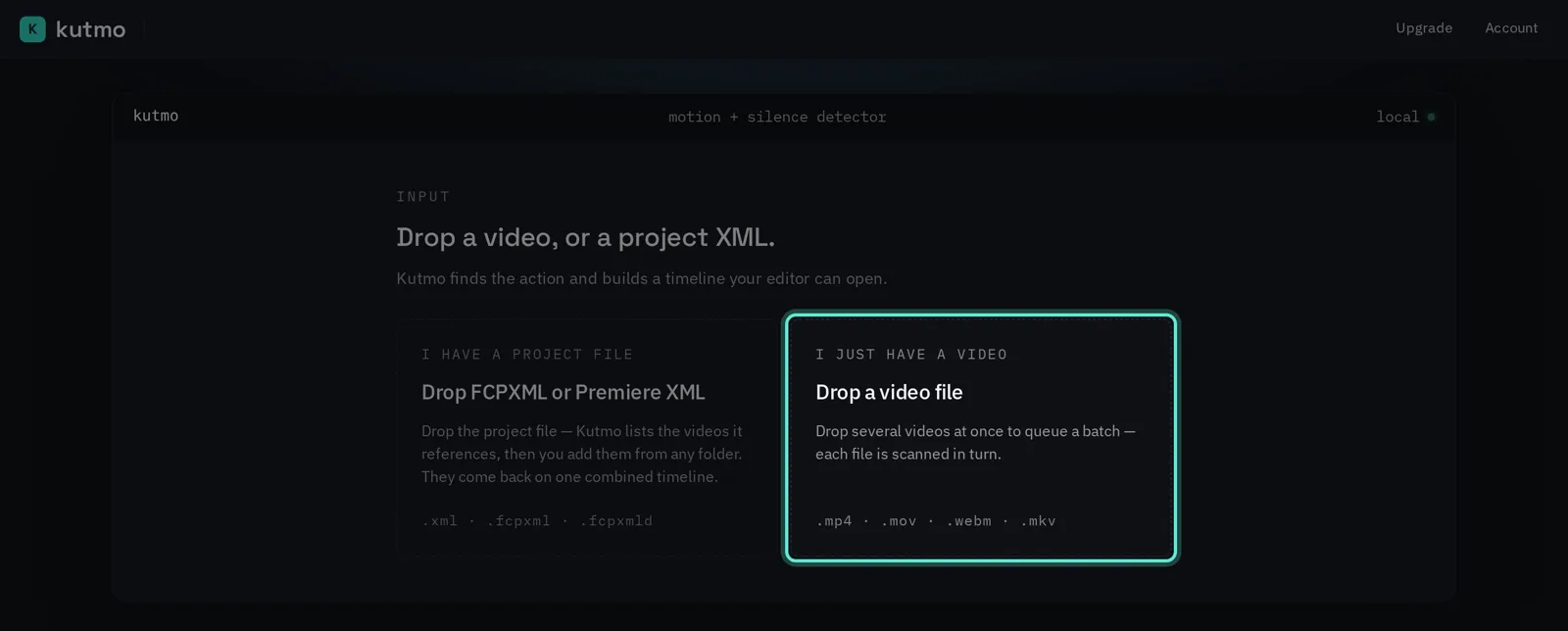
1. Open Kutmo and drop the video
Go to kutmo.com/app and drop the file onto the page. Several files at once become a queue, all cut with the same settings.
2. Check the mode and pick a preset
Video only keeps the stretches where the picture moves and ignores the sound. It is already selected when the editor opens.
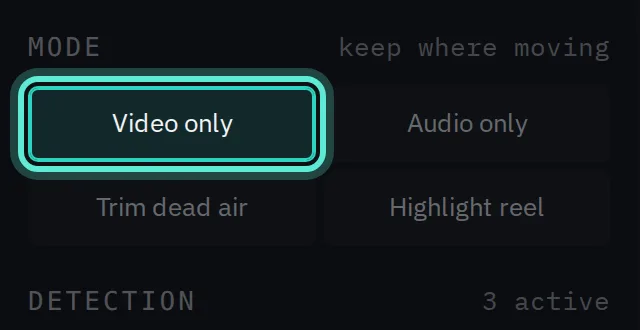
Under Presets, pick the one closest to your footage: General / Auto, Painting / Art, Surveillance or Cooking / Crafting. Each sets the detection to a starting point for that kind of video. If none fits, leave it on General / Auto.
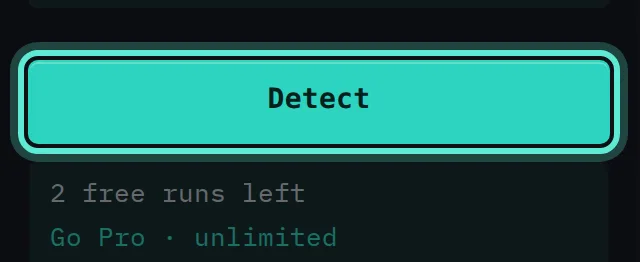
3. Press Detect
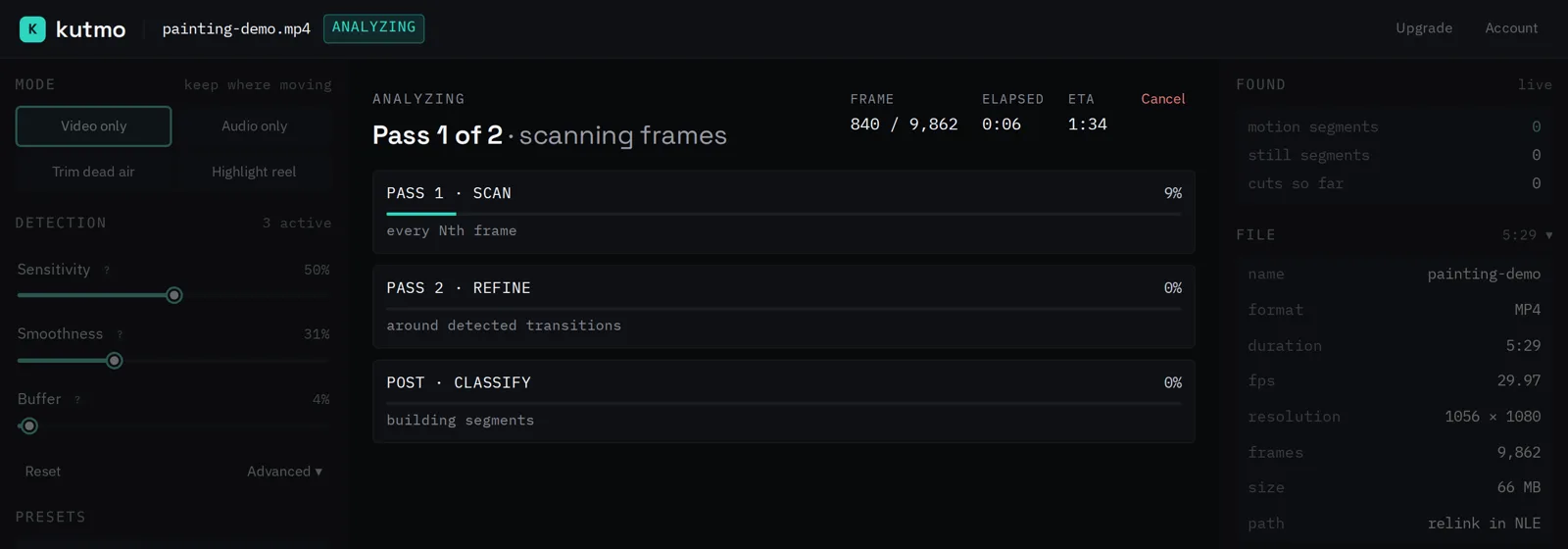
Kutmo makes two passes: a scan of the whole video, then a closer look at each place where movement starts or stops. How long it takes depends on the length and resolution of the video and on your computer. You can cancel at any time.
4. Read the result
The timeline shows the kept parts bright and the cut parts dimmed. Above it are the number of cuts and how much of the video has movement. Below it, every segment is listed with its start and end time.
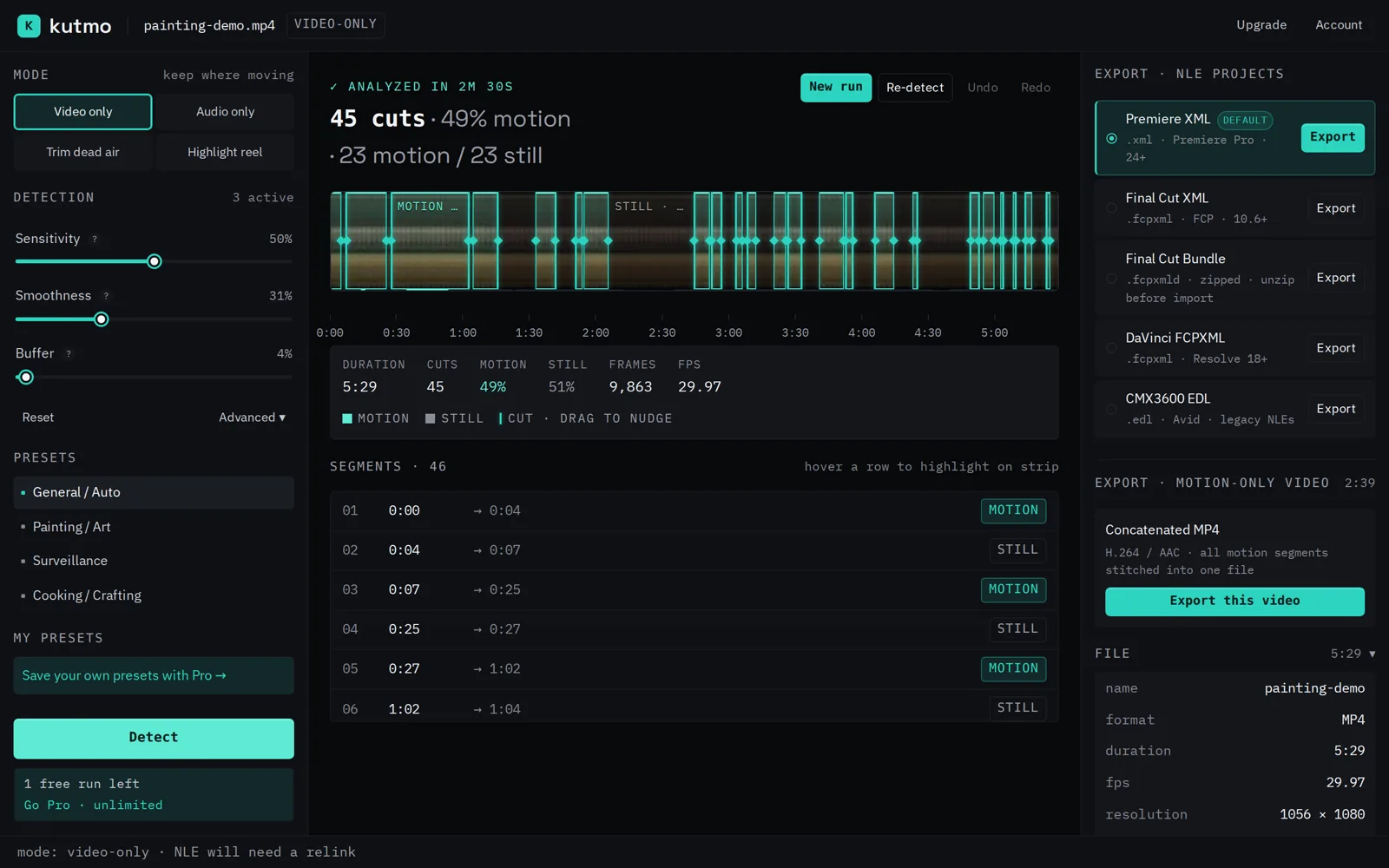
Drag any cut that landed early or late. Undo and Redo cover every nudge.
5. Tune it if the cuts are off
- Small movements kept that you do not want, such as shadows, flicker or a curtain? Lower Sensitivity. Real action missed? Raise it.
- Action cut off as it starts or ends? Raise Buffer to keep more footage around each moment.
- Too many short fragments? Raise Smoothness to merge them.
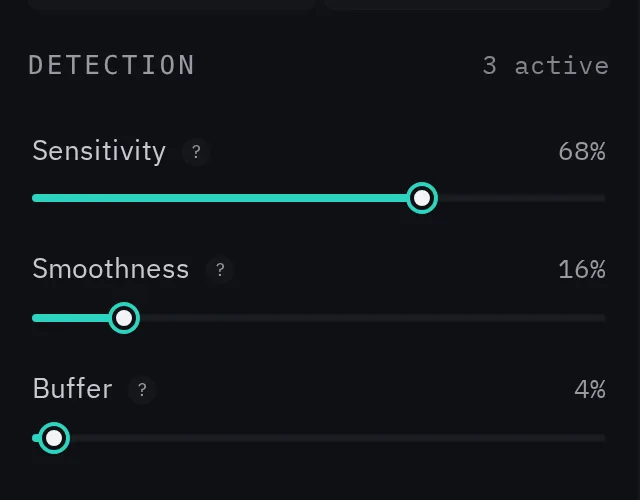
The timeline does not change while you move a slider. Press Re-detect to run again with the new settings. Each run counts toward your free runs.
6. Export
- Premiere XML (.xml) for Premiere Pro.
- DaVinci FCPXML (.fcpxml) for DaVinci Resolve.
- Final Cut XML (.fcpxml) or the bundle (.fcpxmld) for Final Cut Pro.
- CMX3600 EDL (.edl) for Avid and other editors that read EDLs.
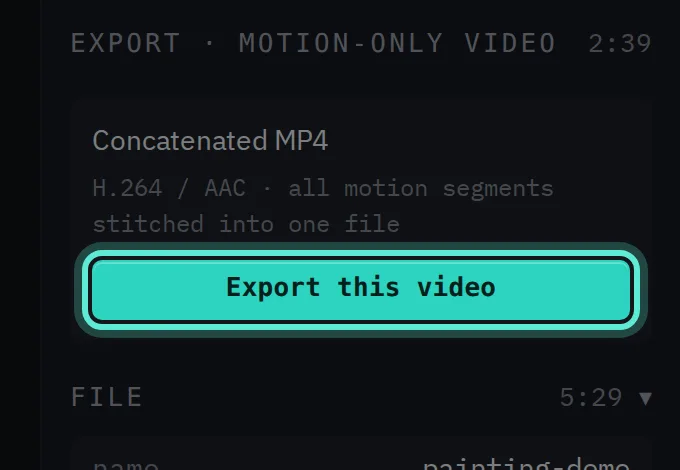
- MP4 if you just want the finished video, with no editor.
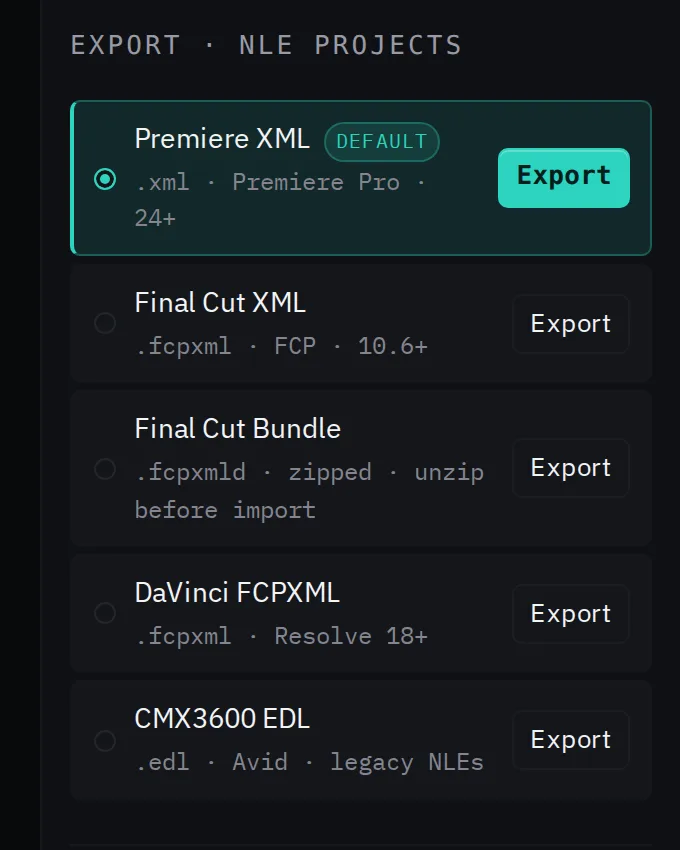
Not sure which timeline format to pick? See EDL vs FCPXML vs Premiere XML.
The MP4 export copies the original video rather than re-encoding it, so it is quick and loses no quality. Each cut moves to the nearest keyframe, which can shift it by up to about a second; the timeline exports cut on the exact frame.
7. Open it in your editor
- Premiere Pro: File → Import, then choose the .xml.
- DaVinci Resolve: File → Import → Timeline, then choose the .fcpxml.
- Final Cut Pro: File → Import → XML, then choose the .fcpxml (unzip a .fcpxmld first).
Browsers never tell a website where a file sits on your disk, so the timeline refers to the video by its name. If your editor reports the media as offline or asks where it is, point it at the original file once.
The XML exports remove nothing for good. The kept parts sit on one track and the cut parts on another, so you can see every cut and drag any of it back before you delete the still parts.
Common questions
Does my video get uploaded? No. Detection, preview and the MP4 export all run in your browser.
Does it work on handheld or moving-camera footage? Not well. When the camera moves, the whole picture changes, so everything counts as movement.
The video has talking too. Can it use the sound? Yes. Trim dead air cuts only where the video is both silent and still, and Highlight reel keeps only the parts that are moving and audible. For sound alone, see Remove silence from video automatically.
Try it on your own video. Your first 2 runs need no account, and a free account adds 5 more.