Kutmo finds the parts of a long video worth keeping, by motion, by sound or both, and gives Premiere Pro a sequence with every cut already made. Nothing is rendered: Premiere plays your original footage.
1. Export Premiere XML
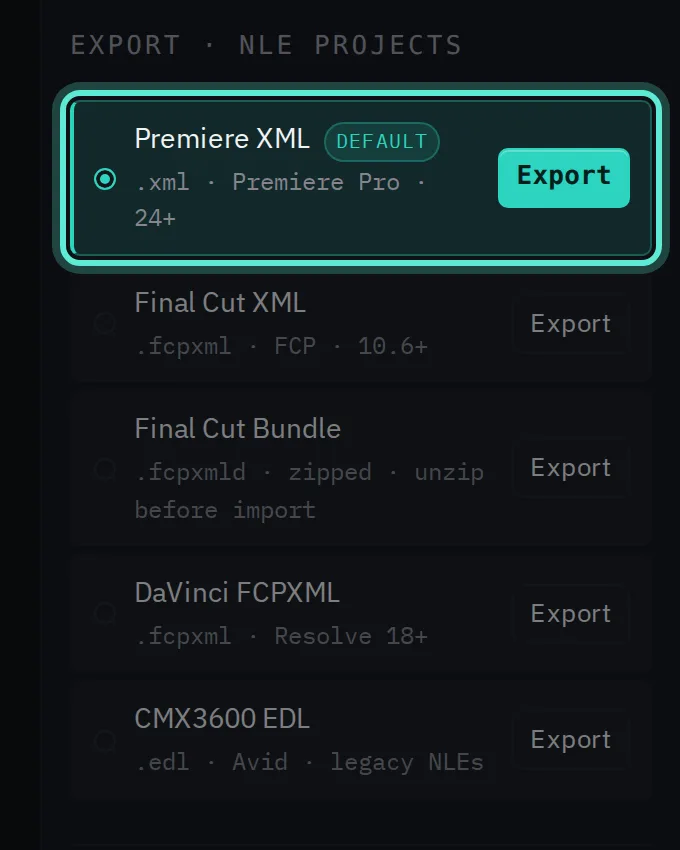
In Kutmo, after Detect, choose Premiere XML (.xml) and save it. It is the default export, written for Premiere Pro 24 and later. Leave the source video where it is.
2. Import the XML
In Premiere, open or create a project, then File → Import and choose the .xml. The sequence appears in the Project panel; double-click it to open it in the timeline.
3. Relink if the media is offline
Browsers never tell a website where a file sits on your disk, so the timeline refers to the video by its name. If your editor reports the media as offline or asks where it is, point it at the original file once.
In Premiere, right-click the offline clip in the Project panel, choose Link Media, and locate the original video. Every cut in the sequence links up at once.
4. Read the sequence
- The Motion video track holds the parts Kutmo kept.
- The Stills video track holds the parts it would cut, so nothing is lost until you decide.
- Audio follows each part on its own track, linked to its picture.
The track names are the same whichever mode you ran, including Audio only. Play through and drag any cut part back onto the Motion track if Kutmo was too strict.
5. Make it a tight edit
When you are happy with the review, lock the Motion tracks, select the clips on the Stills tracks and delete them. Then close each gap: right-click it and choose Ripple Delete.
Many cuts and no need to review? Export Kutmo's CMX3600 EDL instead. It holds only the kept parts, already joined end to end, and Premiere imports it with File → Import too.
Common questions
Can I bring several videos in at once? Yes. Drop several files into Kutmo; they are cut with the same settings, and the XML lays them one after another on a single sequence.
Try it on your own video. Your first 2 runs need no account, and a free account adds 5 more.